Build and refine an exam
Start from a full HSC trial, let Leibniz draft a structure, or build every question yourself—then watch the paper build, audit it, and refine it with Copilot.
In this article
01Start in your class
Exam Creator makes a complete paper for one class, then gives you a review loop before anything reaches students.
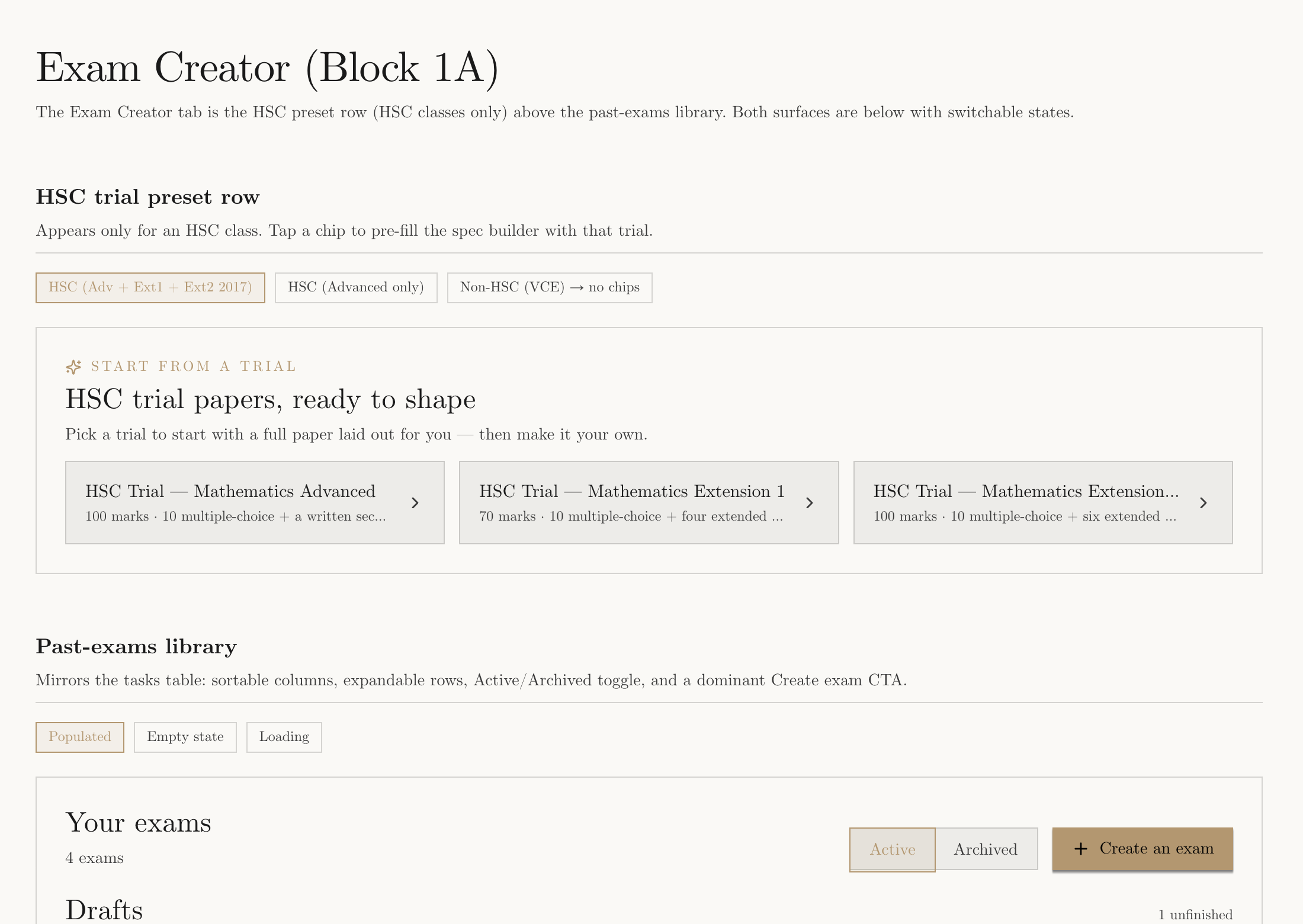
Open the class you are teaching, choose Exam Creator, then select Create an exam. Existing drafts and papers stay in the exam library, so you can leave and return without losing your place.
HSC classes also show trial shortcuts above the library. Choosing one pre-fills the matching course and paper structure.
02Choose how much control you want
All three paths finish at a paper you can inspect and change. The difference is how much of the first draft you want to specify yourself.
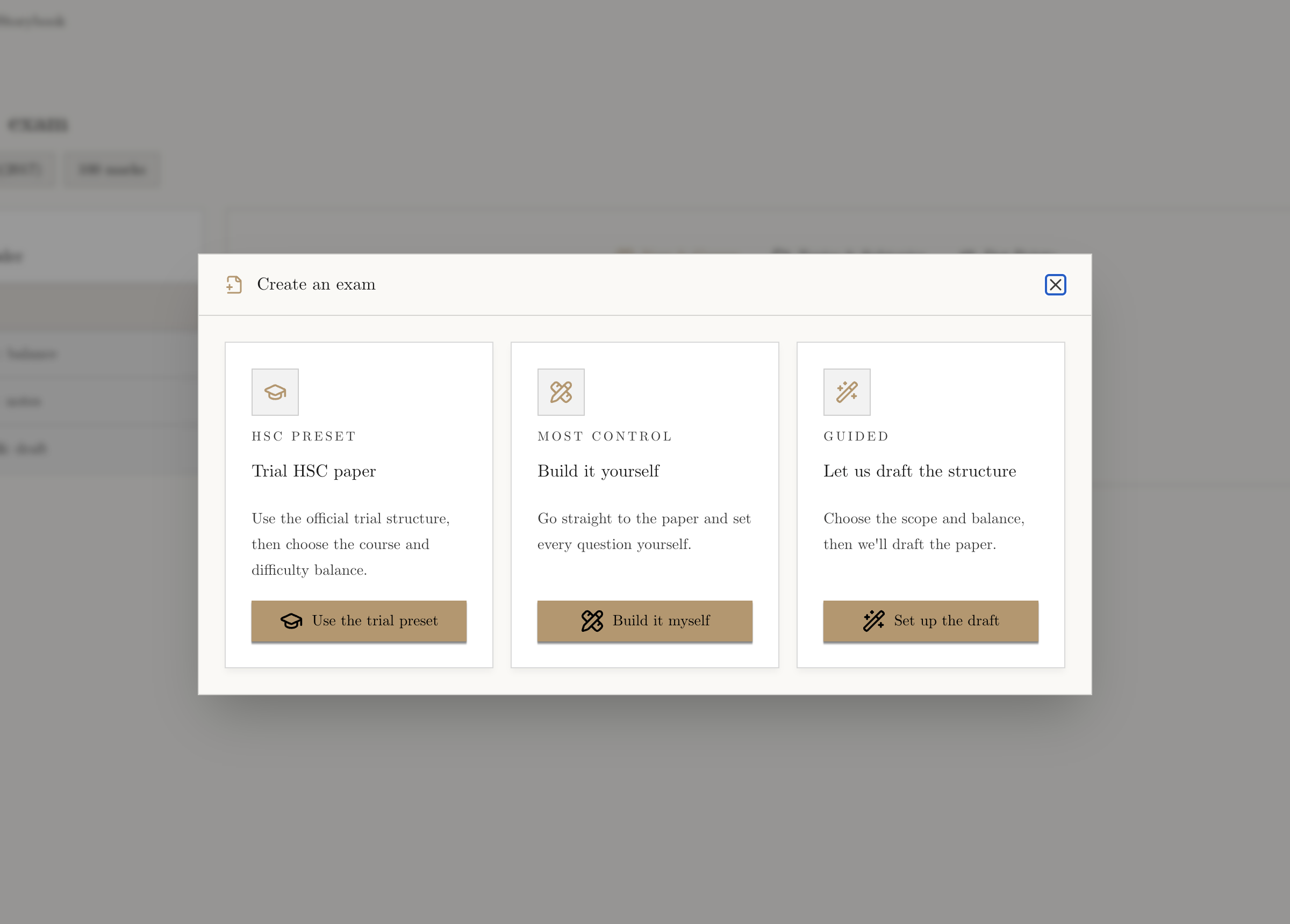
A complete trial with the official structure
Course and difficulty balance
A new paper shaped by syllabus filters
Scope, balance, order and notes
A paper you blueprint question by question
Every section, slot and question
03Path A: start from a full trial
Use the official shape as the skeleton, then make the paper yours.
Choose Trial HSC paper, or select a trial shortcut on the Exam Creator page. Confirm the course and total marks, then set the difficulty balance. The preset supplies the trial’s section and question structure; it does not prevent you from changing the finished questions.
- Check that the course and syllabus year match the class.
- Keep the preset structure if the goal is a realistic trial rehearsal.
- Adjust the difficulty balance before building if this is a teaching paper rather than a formal trial.
04Path B: let Leibniz draft the structure
This is the fastest way to make a new paper around particular content.
Choose Let us draft the structure. The builder walks through four stages. Work left to right and use Review & draft as your final brief before the build starts.
Content
Shape & balance
Order & notes
Review & draft
05Path C: build the paper yourself
Use the blueprint when every section and question slot matters.
Choose Build it yourself, then confirm the course and target marks. Add sections and question slots to the paper. For each slot, set the mark value, content scope, difficulty, and question type. The running total tells you when the blueprint matches your target.
- Name sections the way students will see them.
- Check that the sum of question marks matches the paper total.
- Use precise scope for must-have questions and broader scope where variation is welcome.
- Read the whole blueprint once for repetition and difficulty jumps.
This path gives the most control, but it is still a build brief. You will review the actual questions after the monitor finishes.
06Watch the question grid build
One box is one question. The label tells you exactly where it is.
After you start the build, Exam Creator opens the live question grid. Questions can be Waiting, In progress, Polishing, Ready, or Needs attention. The final row assembles and audits the complete paper after individual questions are ready.
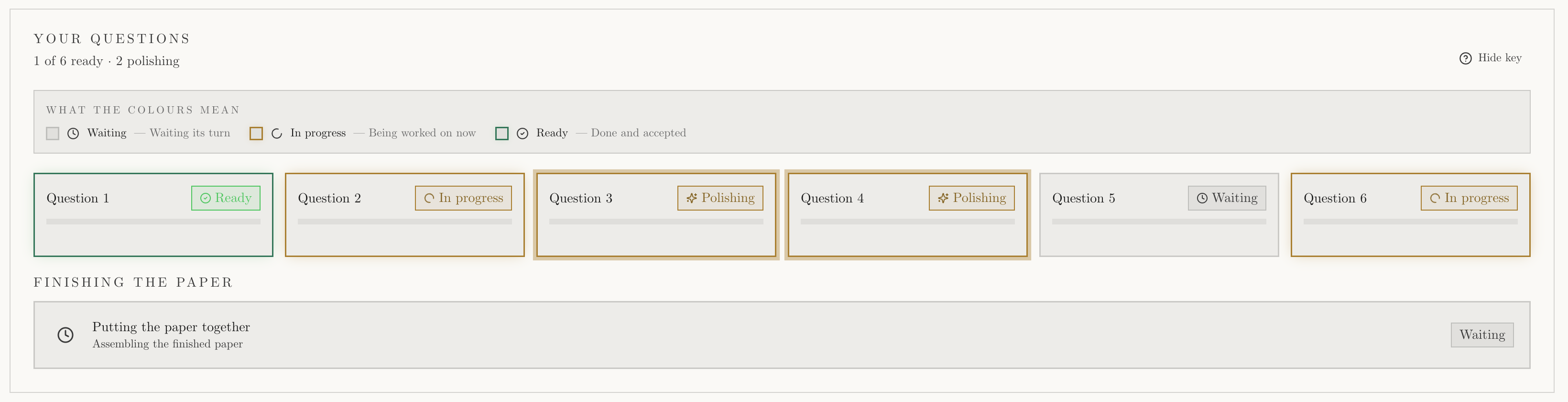
If a box says Needs attention, open it for the specific problem and retry only when prompted. Do not start a second copy of the same exam while the first is still building.
07Review the generated paper
Ready means the build and audit finished. It does not replace your professional review.
Open the finished paper and read every question in order. Expand the solution and marking guide, check mark allocations, and inspect diagrams and multiple-choice options. Use the download buttons to preview the questions and solutions PDFs before assigning anything.
- Course, syllabus year, title, instructions, and total marks are correct.
- Every question is solvable from the information shown.
- Marks and the marking guide agree.
- Tables, diagrams, notation, and page breaks render correctly in the PDF.
- The paper has the intended content coverage and difficulty progression.
08Ask Copilot for changes
Describe the outcome you want in ordinary teaching language; keep the request attached to the smallest part of the paper it affects.
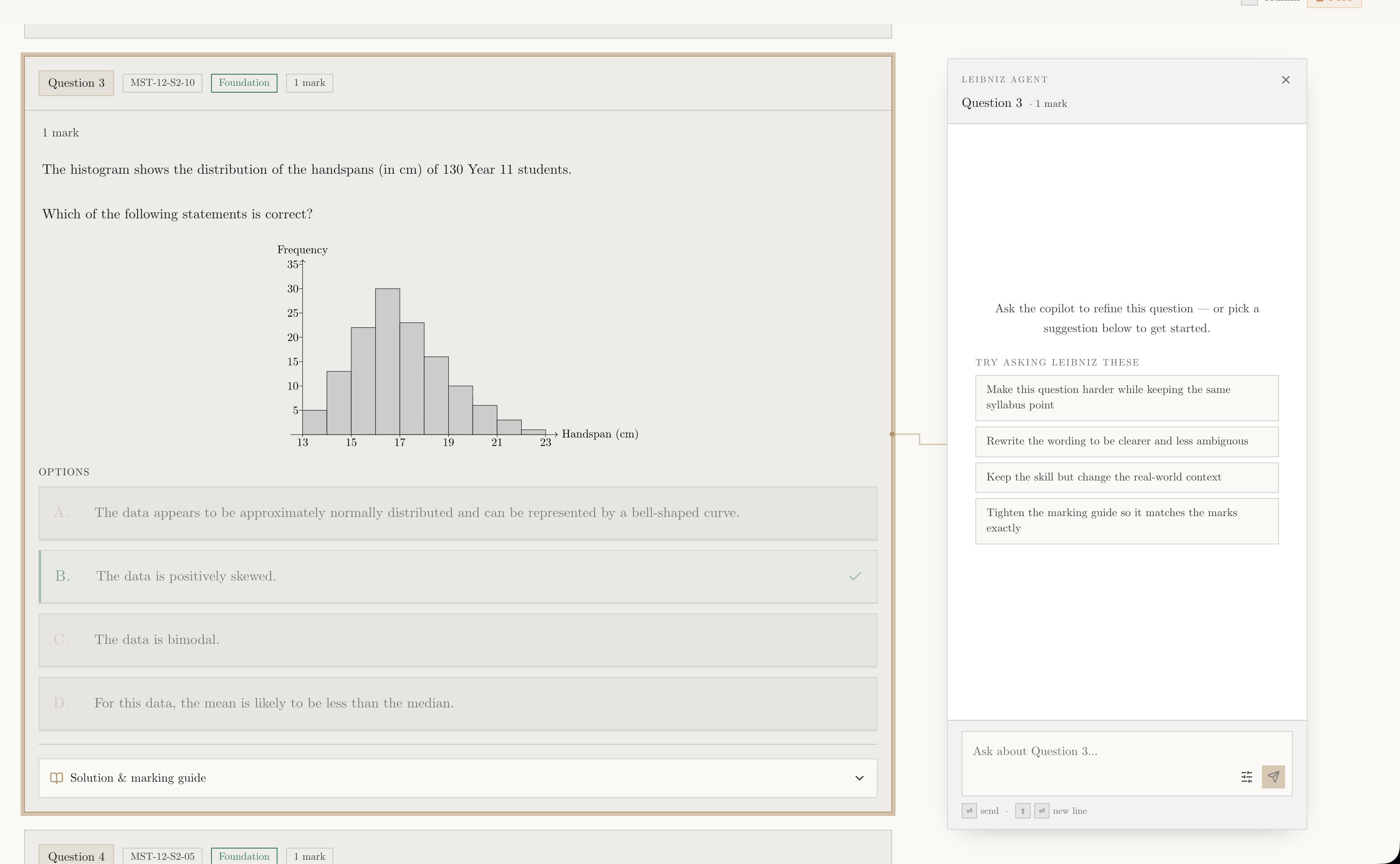
Focus the question you want to change. The Leibniz Agent rail docks beside that question, and the highlighted card and connector confirm which part of the paper you are changing. Pick a suggested request or type your own in the composer at the bottom.
Say what should change and what should stay: for example, make the question harder while keeping the same syllabus point, clarify the wording, change the real-world context, or tighten the marking guide to match the marks.
Sending starts a focused question run. Follow its progress, then review the affected question, solution, marking guide, and both PDFs again before setting the exam as a task.