Make a PDF worksheet in minutes
Choose the exact content and difficulty you need, review every question, then turn the finished task into a printable worksheet.
In this article
01Before you start
A quick worksheet is a normal Leibniz task that you shape, check, and then download as a questions PDF.
Use a desktop or laptop and allow about five minutes for a short worksheet. You will choose from the existing question bank—this flow does not ask an AI to write a paper from scratch. Your finished task can still be completed online, but this guide follows the printable path.
- Know the year level and course you are teaching.
- Have a topic, subtopic, or set of syllabus dot points in mind.
- Decide roughly how many marks or questions you want.
02Open Tasks and start a worksheet
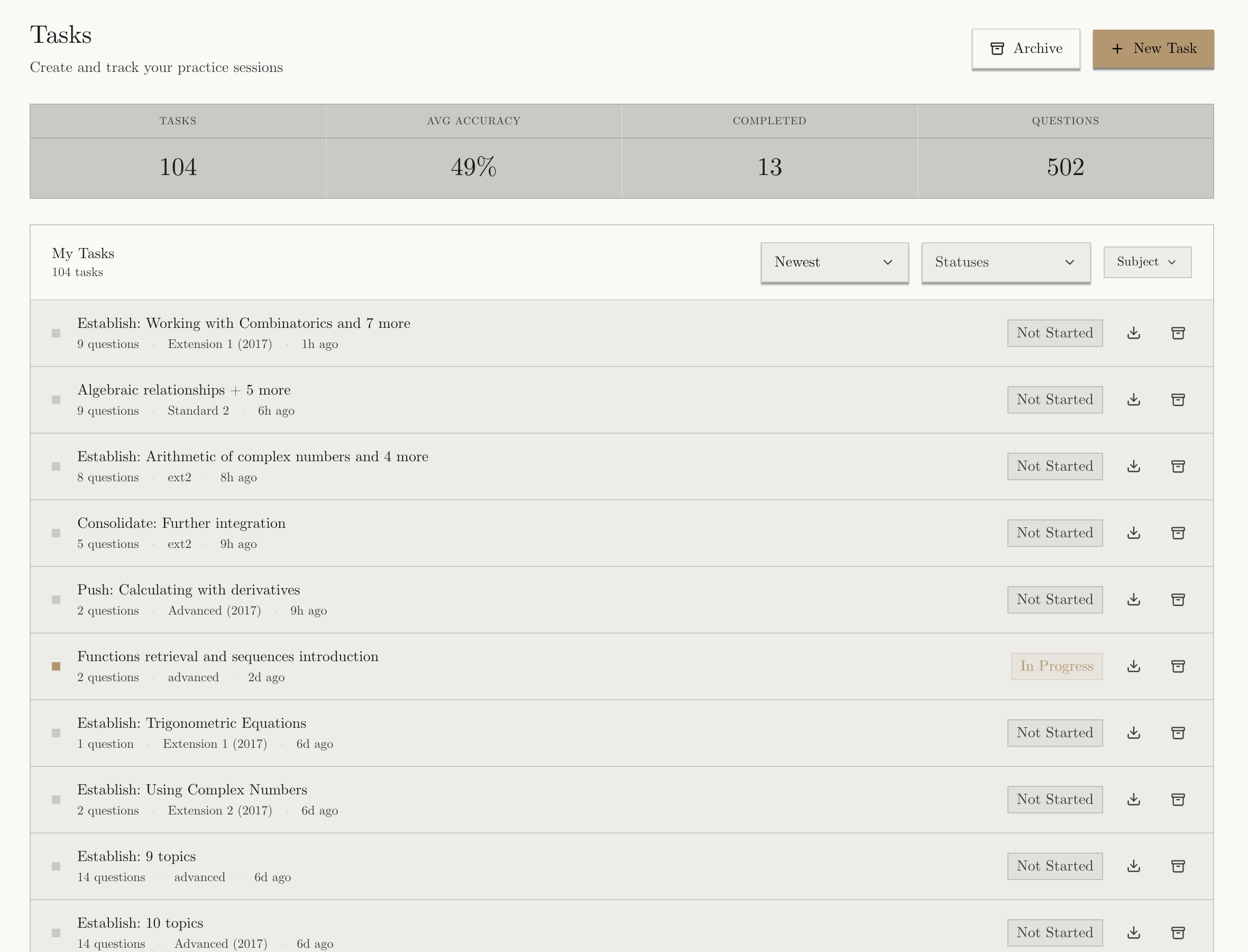
Open Tasks from the book icon in the left navigation, then choose New Task. Leibniz opens the task builder and keeps a live summary of your choices on the right.
03Choose exactly what to cover
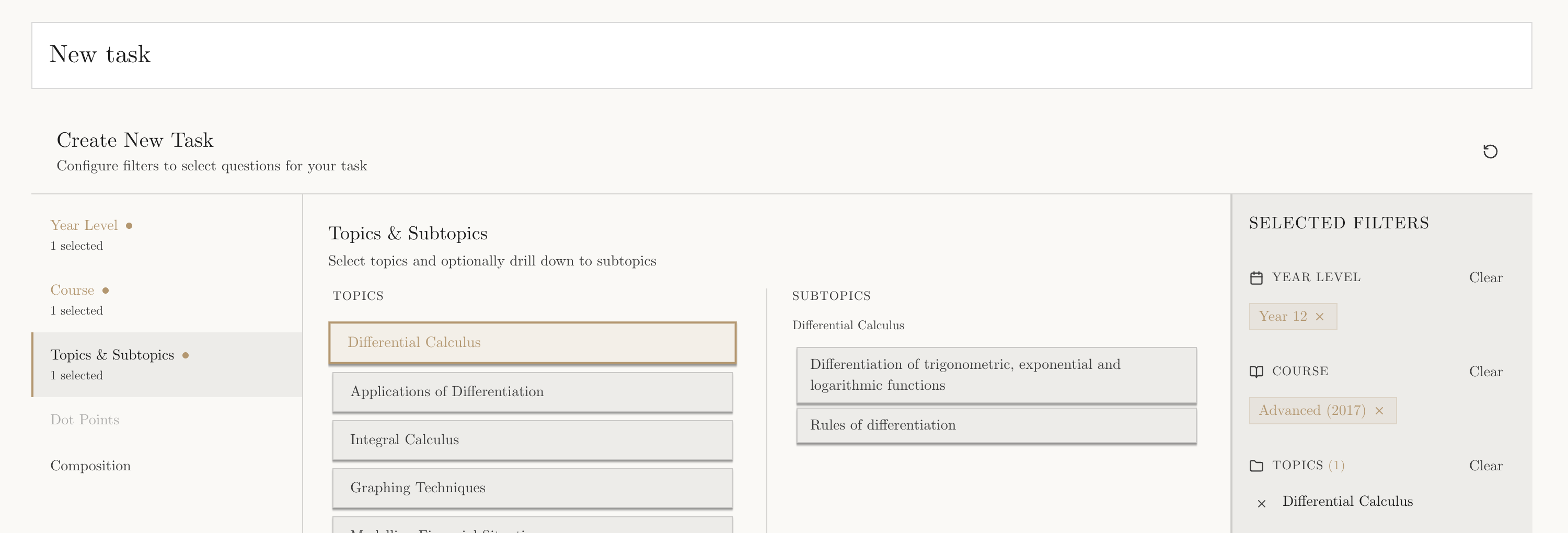
Work down the left rail. Each choice unlocks the next level of detail.
Choose the year level
Choose the course
Choose topics and subtopics
Use dot points only when you need precision
04Set the length and balance
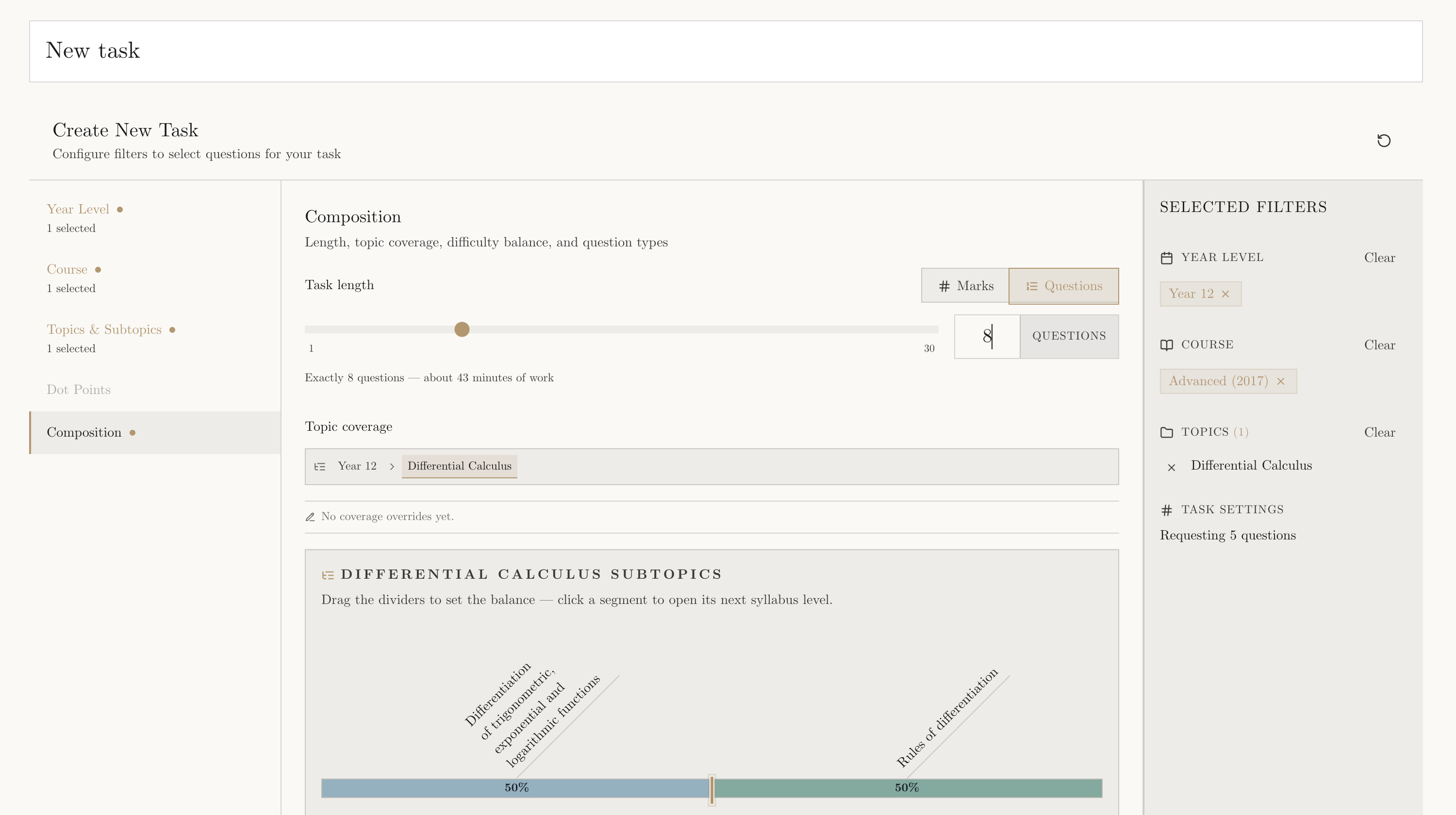
Open Composition. This is the last builder panel and it controls four things: length, coverage, difficulty, and question type.
Pick marks or questions
Check topic coverage
Set the difficulty spread
Choose question types
05Review every question
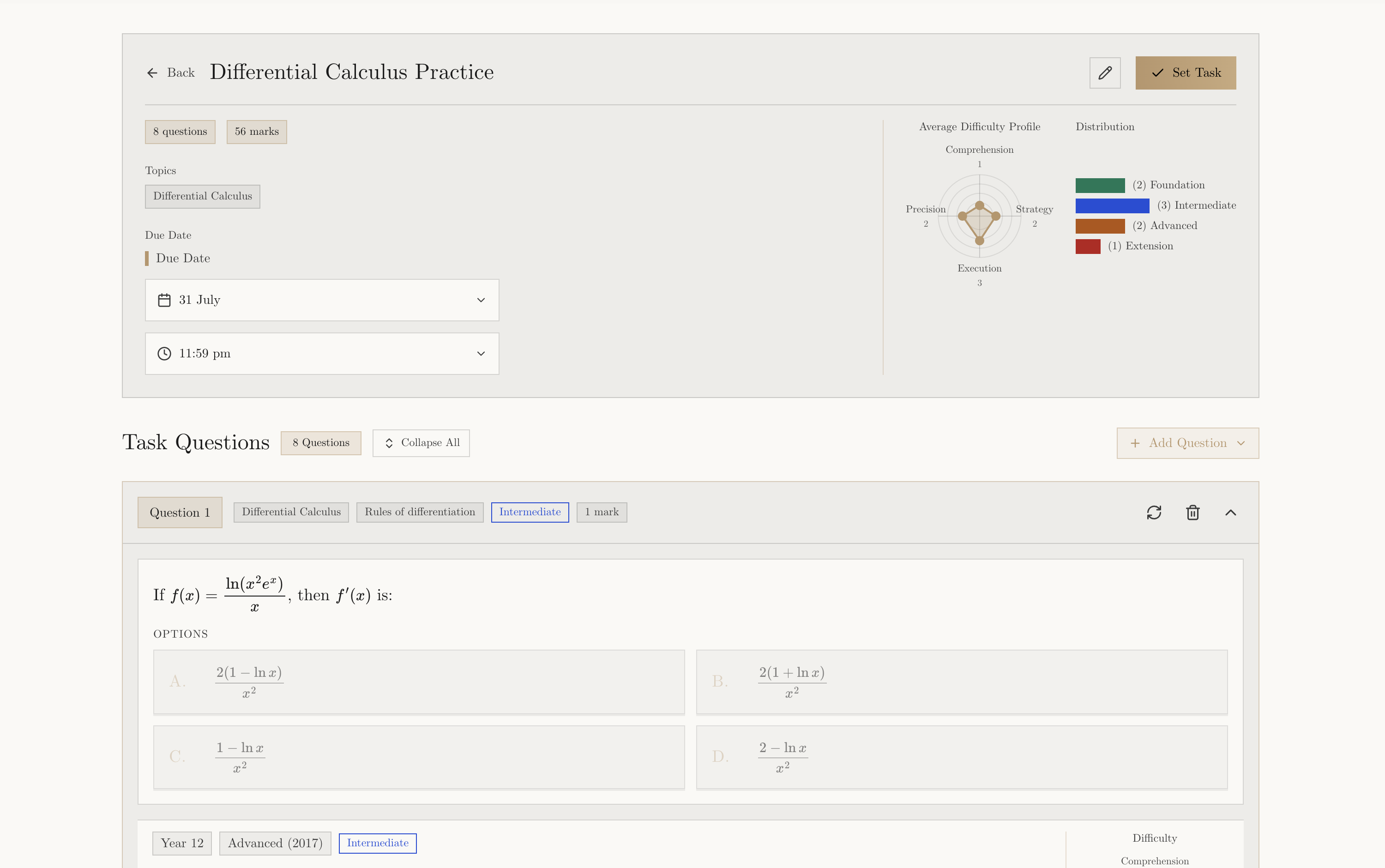
Compiling makes a draft. Nothing is assigned or saved as a task until you approve it.
Give the worksheet a clear title and check the due date. Expand each question and read the stem, marks, diagrams, and answer choices. The question and mark totals at the top should match the lesson you planned.
Swap a question
Remove or add
Approve the draft
06Download the PDF
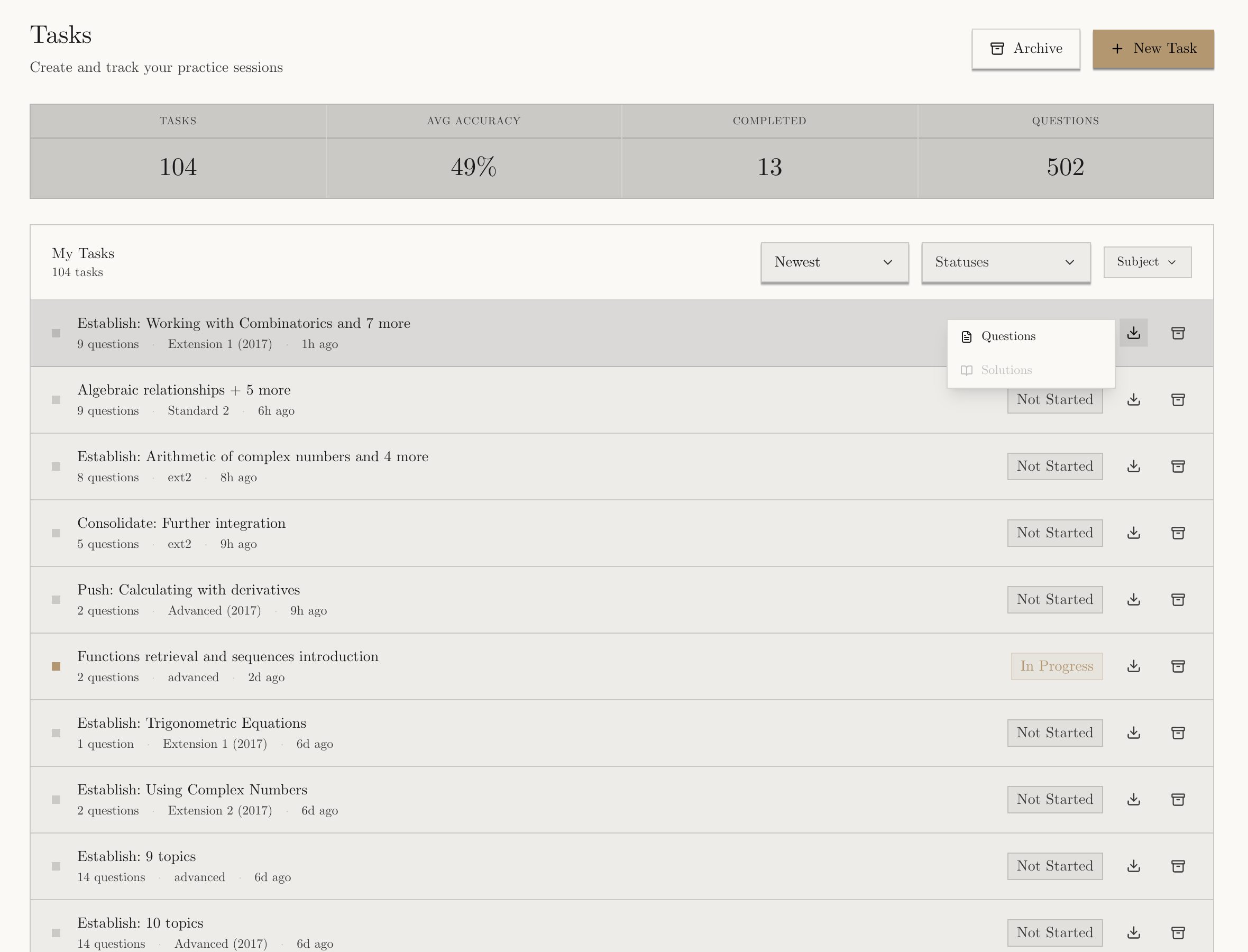
Find the task in Tasks. Open its download menu and choose Questions. Leibniz prepares the printable worksheet and your browser saves the PDF.
The Solutions PDF stays unavailable until the task is completed. This prevents the marking guide being handed out with a live online task by accident.
- Open the PDF and check every page before printing.
- Confirm diagrams, tables, marks, and page breaks look right.
- Print the questions PDF; keep the solutions PDF for marking later.